
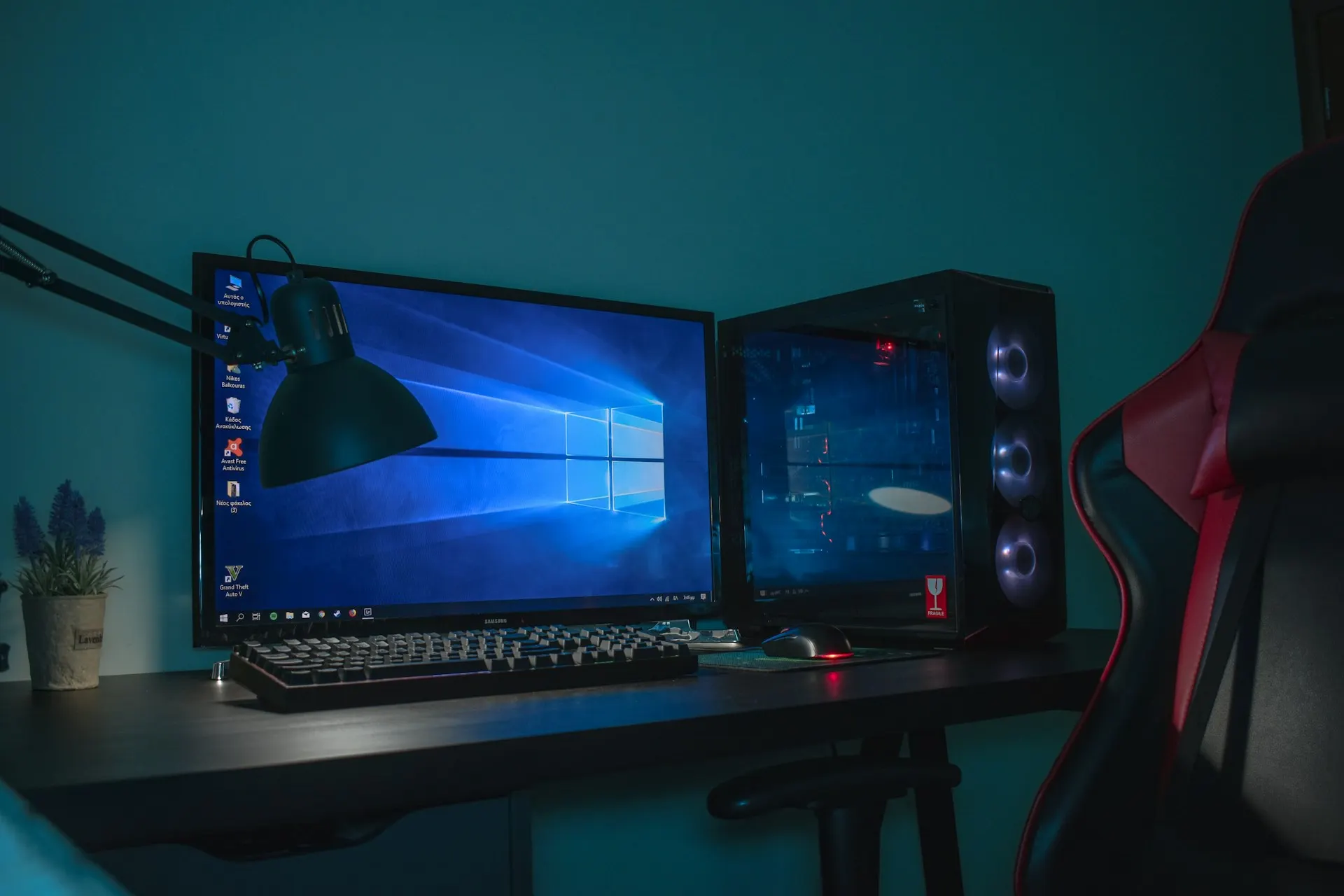
A 4K wallpaper can make your desktop look exceptionally sharp, especially on a high-resolution monitor. Fine textures, distant scenery, character artwork, and small details appear clearer than they do in lower-resolution images.
Some users avoid 4K wallpapers because they believe the larger files will slow down their computers. A normal static 4K wallpaper, however, has very little effect on the performance of a reasonably modern PC.
Performance problems are more commonly caused by live wallpapers, rotating slideshows, oversized uncompressed files, limited graphics memory, or applications running in the background.
Here is how to enjoy 4K wallpapers while keeping your computer responsive.
Does a 4K Wallpaper Slow Down a PC?
A static wallpaper is loaded into memory and displayed as part of the desktop. It does not need to be continuously rendered like a game, video, or animated background.
This means a properly optimized 4K image should not noticeably reduce gaming performance, application speed, or general responsiveness on most computers.
The file may take slightly longer to load than a low-resolution image, but once displayed, the difference is usually insignificant.
Older computers with very limited memory or graphics resources may experience delays when changing backgrounds. Even in those cases, using an optimized image format and avoiding animated wallpaper normally resolves the problem.
Use a Static Wallpaper
The easiest way to protect performance is to use a static image instead of a live wallpaper.
Live wallpapers may contain video, animation, particle effects, interactive elements, or real-time visual rendering. These features can continually use the processor and graphics card, even when you are not actively looking at the desktop.
A static JPG, WebP, PNG, or AVIF wallpaper requires far fewer resources.
If you prefer animated backgrounds, choose software that pauses animation when:
- A game is running
- An application is maximized
- The computer is using battery power
- The desktop is not visible
- System resources are under heavy use
Match the Wallpaper to Your Screen
A 4K wallpaper is most useful on a 4K display with a resolution of 3840 × 2160. It can also look excellent on a QHD or Full HD monitor because the image is reduced rather than enlarged.
However, there is little benefit in downloading extremely large images such as 8K wallpapers for a small 1080p screen unless you plan to crop or reuse them.
Choose a wallpaper that closely matches your display:
- Full HD screen: 1920 × 1080 or higher
- QHD screen: 2560 × 1440 or higher
- 4K screen: 3840 × 2160
- Ultrawide QHD screen: 3440 × 1440
- 4K ultrawide screen: use the monitor’s exact native resolution
Matching the screen’s aspect ratio also reduces unnecessary cropping and resizing.
Choose an Efficient Image Format
Image format affects storage size and loading time.
JPG works well for photographs and detailed artwork with many colors. PNG is ideal when transparency or perfectly lossless details are required, but PNG files can be much larger.
WebP and AVIF can provide excellent image quality at significantly smaller file sizes. They are useful for storing large wallpaper collections without consuming excessive disk space.
For a normal 4K wallpaper, a well-compressed high-quality file is preferable to a huge, uncompressed image that provides no visible improvement.
Avoid Extremely Large Files
Resolution and file size are not the same thing.
Two images can both have a resolution of 3840 × 2160 while one occupies 2 MB and the other occupies 40 MB. The larger file may use less compression, contain extra metadata, or be saved in an inefficient format.
A properly optimized wallpaper can remain visually sharp without being unnecessarily large. Avoid repeatedly converting an image between formats, because each lossy conversion can gradually reduce its quality.
Limit Wallpaper Slideshows
A rotating wallpaper slideshow is convenient, but frequently loading new 4K images can increase disk activity and memory use.
This is rarely a major issue on a modern PC, but it may become noticeable when the slideshow changes every minute or pulls images from a slow external or network drive.
For smoother performance:
- Change the image every 15 minutes or longer.
- Store the wallpapers on a local drive.
- Keep the collection reasonably sized.
- Avoid mixing thousands of very large files in one folder.
- Disable the slideshow while using battery power.
Store Wallpapers Locally
A wallpaper stored on a local SSD will normally load faster than one stored on a network drive, cloud-synced folder, slow USB device, or disconnected location.
If your wallpaper occasionally turns black or takes time to appear, copy it to a permanent folder on the computer. Do not move or rename the image after applying it.
A dedicated Pictures or Wallpapers folder makes the collection easier to manage.
Be Careful With Multi-Monitor Setups
Multiple 4K monitors require more graphics memory than a single display, but the wallpaper itself is rarely the main performance concern. The overall desktop resolution, open applications, animations, browser windows, and video playback have a greater impact.
Use wallpapers designed for the combined resolution if you want one image to span every monitor. Otherwise, assign a correctly sized image to each display.
Avoid using an enormous panoramic image when separate optimized wallpapers would produce the same visual result.
Check Background Applications
If your PC feels slow after changing its wallpaper, check whether wallpaper software or another background application is responsible.
Open Task Manager and review CPU, memory, GPU, and disk usage. A normal static wallpaper should not appear as a continuously resource-intensive process.
High usage may come from:
- Live-wallpaper software
- Desktop customization tools
- Cloud synchronization
- Antivirus scanning a newly downloaded file
- A wallpaper slideshow
- Widgets and desktop overlays
- Unrelated applications running in the background
Identifying the active process is more reliable than assuming the 4K image itself is causing the slowdown.
Recommended 4K Wallpaper Setup
For good image quality and low resource use:
- Download a static 3840 × 2160 wallpaper.
- Choose an optimized JPG, WebP, or AVIF file.
- Save it in a permanent local folder.
- Set Windows to the monitor’s recommended resolution.
- Apply the wallpaper using Fill or Fit.
- Avoid rapid slideshow changes.
- Disable unnecessary animation and desktop effects.
Final Thoughts
You do not need a powerful gaming computer to use a 4K wallpaper. A static, properly compressed 4K background has minimal performance impact on most PCs.
The biggest performance differences come from animation, frequent image changes, inefficient files, and background customization software—not from the 4K resolution alone.
Choose an optimized wallpaper that matches your screen, save it locally, and use a simple static background. You will get the clarity of 4K without sacrificing everyday computer performance.