
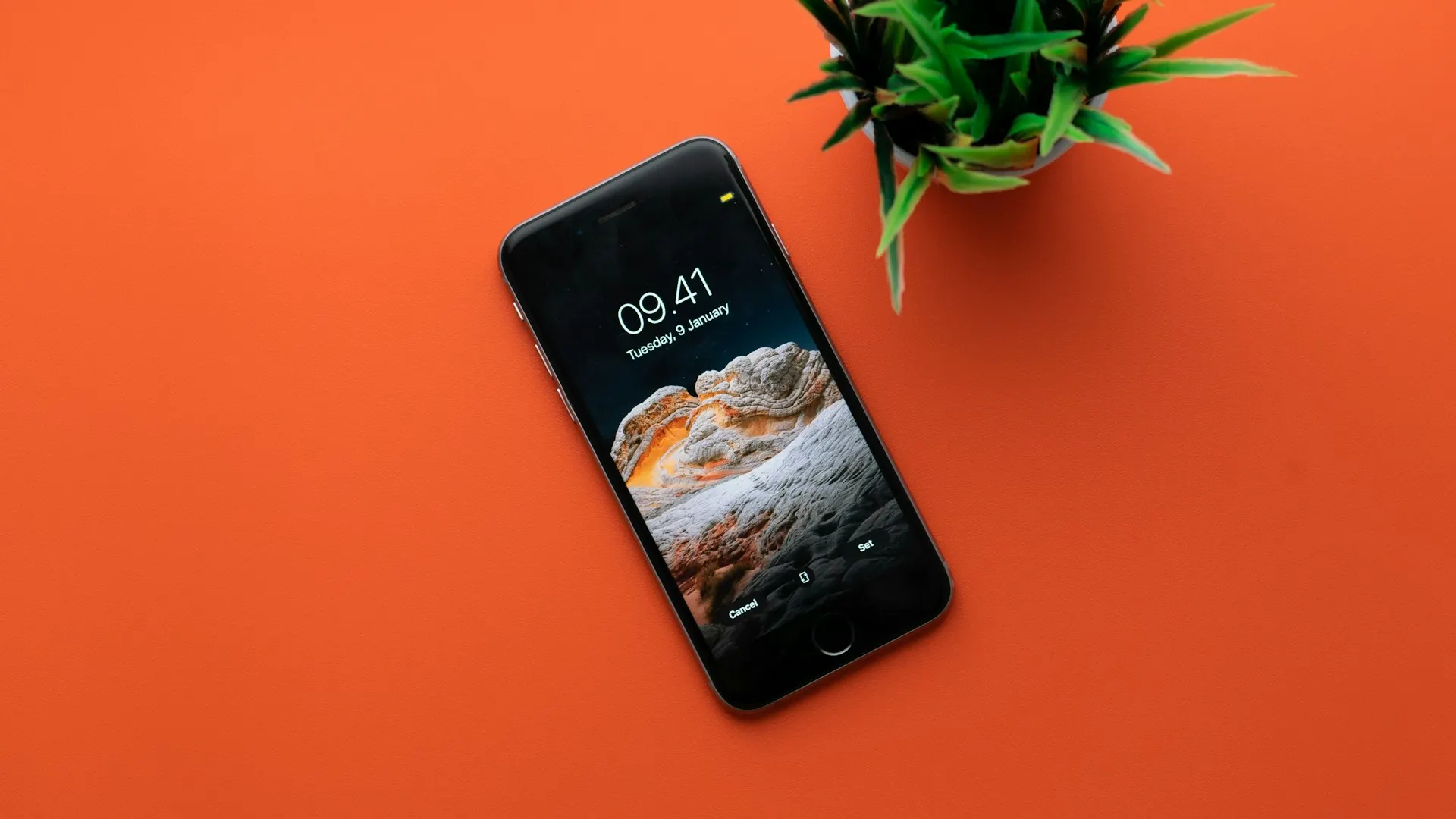
You download a beautiful phone wallpaper, open the preview, and everything looks perfect. But when you apply it, the phone zooms in, cuts off the subject, or removes important details from the top and sides.
This is one of the most common wallpaper problems on smartphones. It usually happens because the wallpaper’s shape does not match the screen or because the operating system needs extra image space for movement, scrolling, and different screen layouts.
Here is why phones crop wallpapers and what you can do to make them fit properly.
The Wallpaper and Screen Have Different Aspect Ratios
Aspect ratio describes the relationship between an image’s width and height.
Older phone wallpapers often use a 9:16 ratio, such as 1080 × 1920. Many modern phones have taller screens with ratios closer to 9:19.5, 9:20, or 9:21.
If you apply a 1080 × 1920 wallpaper to a taller 1080 × 2400 screen, the phone must decide how to fill the additional space. It may enlarge the image until the screen is covered, causing some content to disappear from the sides.
The reverse can also happen. A wallpaper designed for a particularly tall device may be cropped at the top and bottom on a shorter screen.
For the best fit, choose an image with the same or a very similar aspect ratio to your phone.
Phones Use Different Wallpaper Resolutions
Two phones can have similar physical screen sizes but completely different resolutions.
Common phone resolutions include:
- 720 × 1600
- 1080 × 1920
- 1080 × 2340
- 1080 × 2400
- 1170 × 2532
- 1179 × 2556
- 1290 × 2796
- 1440 × 3088
- 1440 × 3200
A high-resolution image can normally be reduced without losing clarity. A small wallpaper may need to be enlarged, which can introduce both cropping and blur.
Check your device specifications and download the closest available phone-wallpaper version.
Your Phone Intentionally Zooms the Image
Some phones apply a small amount of zoom when setting a wallpaper. This gives the system additional space for effects such as:
- Home-screen scrolling
- Parallax movement
- Page transitions
- Perspective effects
- Lock-screen animation
- Wallpaper motion when the phone tilts
Because the image must extend beyond the visible screen area, its edges may be cropped even when its resolution seems correct.
Look for options such as Motion effect, Perspective zoom, Scroll wallpaper, Cinematic effect, or Apply effects. Turning these off may allow more of the image to remain visible.
Available options vary by phone model and operating-system version.
The Lock Screen and Home Screen Crop Differently
The home screen and lock screen do not always use the same visible area.
The lock screen may reserve space for:
- The clock
- Notifications
- Shortcuts
- Face-recognition indicators
- Fingerprint prompts
- Music controls
The home screen may allow scrolling between pages, display a dock, or move the wallpaper behind icons. As a result, the same image can be positioned differently on each screen.
Preview both versions before applying the wallpaper. If the phone allows it, set one image for the lock screen and a separately adjusted version for the home screen.
Camera Cutouts Affect the Composition
Notches, punch-hole cameras, rounded corners, and dynamic notification areas reduce the usable visual area.
Your phone may not technically crop the image around these features, but important details can still appear hidden or unbalanced. A face placed too close to the top, for example, may be covered by the clock or camera cutout.
Wallpapers work best when the main subject is positioned away from:
- The top status area
- Bottom navigation controls
- Screen corners
- Clock and notification zones
- Camera cutouts
Images with extra space around the subject are easier to adapt to different phones.
The Phone Tries to Fill the Entire Screen
Most smartphones use a background behavior similar to the Fill option on a computer. The image is enlarged until there are no empty borders.
This guarantees that the whole display is covered, but parts of the image may extend beyond the screen.
If you want the complete image to remain visible, you may need to add borders or background space around it before setting it as the wallpaper.
How to Make a Wallpaper Fit Properly
1. Find Your Screen Resolution
Check your phone manufacturer’s official specifications or search for the exact model and its display resolution.
Remember that screen resolution is more useful than physical screen size. Two 6.7-inch phones may require different wallpaper dimensions.
2. Download the Phone Version
Use a portrait wallpaper created specifically for mobile devices. Avoid using a desktop image unless the subject is positioned so that the sides can be removed safely.
WallpaperPanda’s device-specific versions make it easier to choose an image intended for a phone rather than forcing a landscape desktop background onto a vertical display.
3. Reposition the Image
During the wallpaper preview, drag the image until the main subject is centered in the usable area.
Do not automatically place a person’s face in the exact middle. Consider where the clock, icons, and notifications will appear after the wallpaper is applied.
4. Zoom Out Where Possible
Use a pinch gesture to zoom out during the preview. Some phones restrict how far you can zoom because the image must continue covering the full display.
If the phone immediately enlarges the image again, you may need to add padding before applying it.
5. Turn Off Motion Effects
Disable parallax, perspective, scrolling, or cinematic effects if they cause unnecessary zooming.
A static wallpaper often provides more predictable positioning.
6. Add Extra Space Around the Image
If the subject is being cropped, place the wallpaper on a larger portrait canvas. Fill the extra area with a matching color, blurred extension, gradient, or expanded background.
This creates breathing room around the main image and gives the phone something to crop without removing the subject.
7. Create Separate Home and Lock-Screen Versions
Use one version with space around the clock for the lock screen and another with space behind app icons for the home screen.
This produces a cleaner result than expecting one composition to work perfectly in two different layouts.
Best Placement for Wallpaper Subjects
When selecting a phone wallpaper, look for a composition where:
- The main subject is near the center.
- Faces are below the clock area.
- Important details are away from the edges.
- There is open space behind icons.
- The background can tolerate slight cropping.
- The image remains attractive in portrait orientation.
Minimal, gradient, abstract, space, and landscape wallpapers are often easy to adapt because their compositions can withstand modest cropping.
Why Screenshots Are a Poor Solution
Taking a screenshot of a wallpaper may appear to create the correct dimensions, but it can reduce image quality and include unwanted interface elements.
Screenshots may also introduce extra compression. It is better to download the original high-resolution image and resize or reposition it properly.
Quick Fix Checklist
If your phone keeps cropping wallpapers:
- Check the native display resolution.
- Download a high-resolution portrait version.
- Match the image’s aspect ratio to the screen.
- Disable wallpaper motion or scrolling.
- Reposition the main subject during preview.
- Add extra background space if necessary.
- Create different home-screen and lock-screen versions.
Final Thoughts
Your phone crops wallpapers because it is trying to cover the entire display while accommodating screen proportions, interface elements, and movement effects.
The most reliable solution is to download a high-resolution portrait wallpaper that matches your phone’s aspect ratio. Choose an image with enough space around the subject, turn off unnecessary motion effects, and adjust separate versions for the home and lock screens when needed.
A small amount of cropping may be unavoidable, but the right wallpaper dimensions and composition will keep the important parts exactly where you want them.